Set up IAGTFT
About three minutes of fiddling, and then you never think about it again.
Haven't signed up yet?
Step 2 needs an API key, and that comes from the signup email. Grab one first (takes about ten seconds), then come back here.
Why we do the Back Tap thing
The point of IAGTFT is that you don't have to stop what you're doing. When you see something worth remembering — a tweet, a recipe, a flight price, an article you'll read later — you double-tap the back of your phone. It screenshots the screen, uploads it, and you carry on scrolling. No app to open, no dialog to confirm.
That only works if the gesture is wired up before you need it. So here's the setup.
Install the Shortcut
Tap Add Shortcut when iOS asks. This is the bit of automation that takes the screenshot and uploads it with your key. If something breaks, it shows you a notification — otherwise it runs silently.
Run it once to store your key
Open the Shortcuts app and tap IAGTFT. iOS will ask you to paste your API key. Paste it, tap Done.
Your key is how we know it's you. It's saved to iCloud Drive after the first paste, so you'll never be asked again. If you've lost your key, check the signup email or use the resend link on the home page.
Wire it to a double-tap on the back of your phone
This is the one that makes it feel like a trick. Apple buries this setting under Accessibility, but the Settings search bar skips the whole journey.
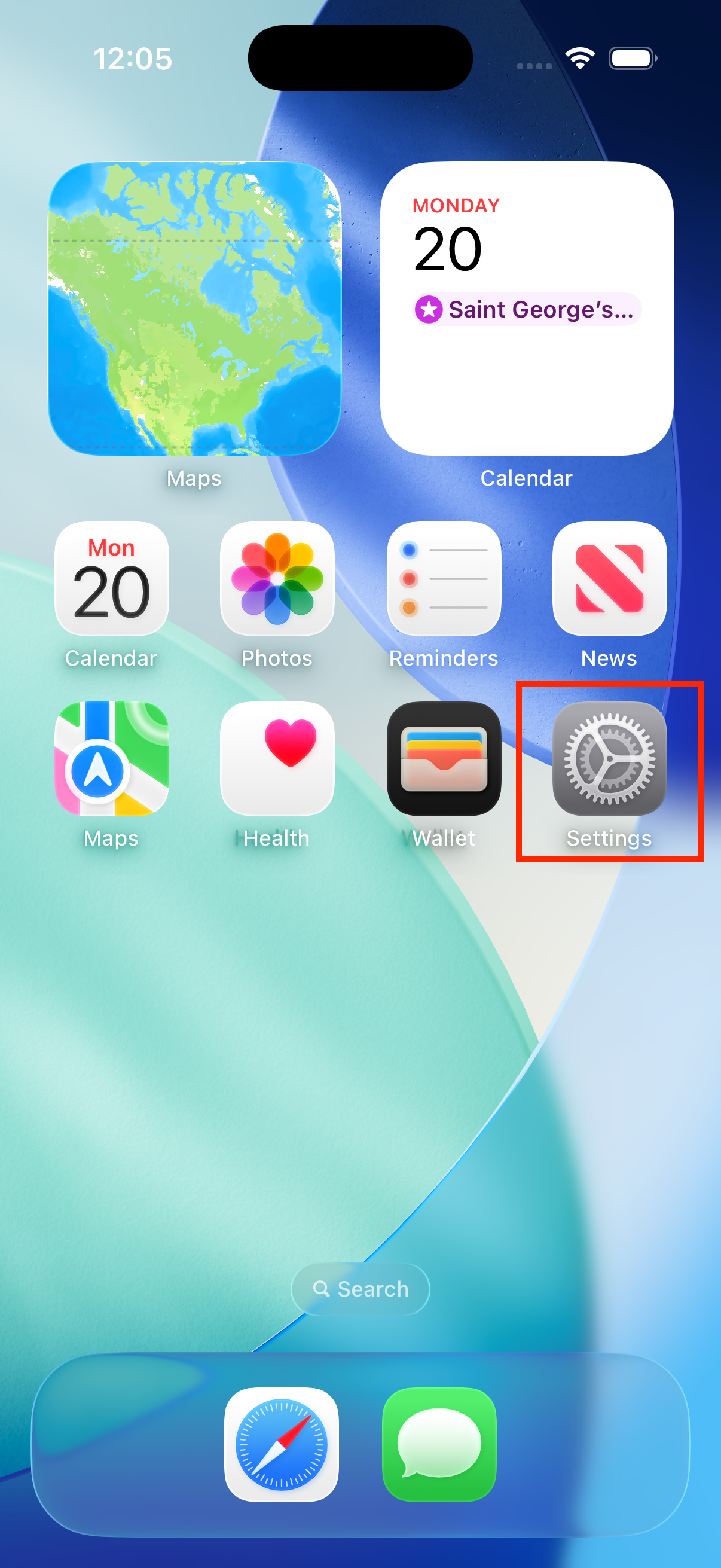
A · Open Settings
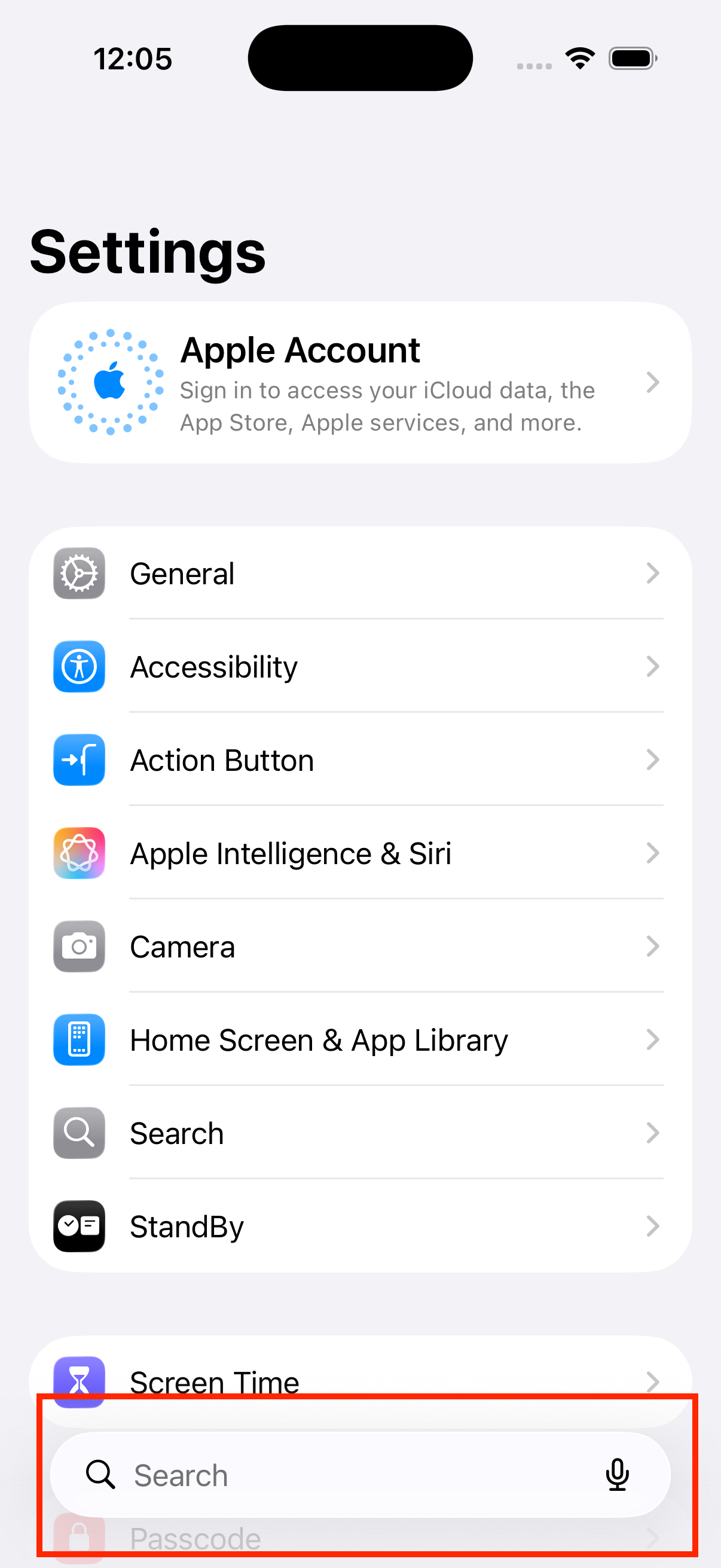
B · Tap the search bar
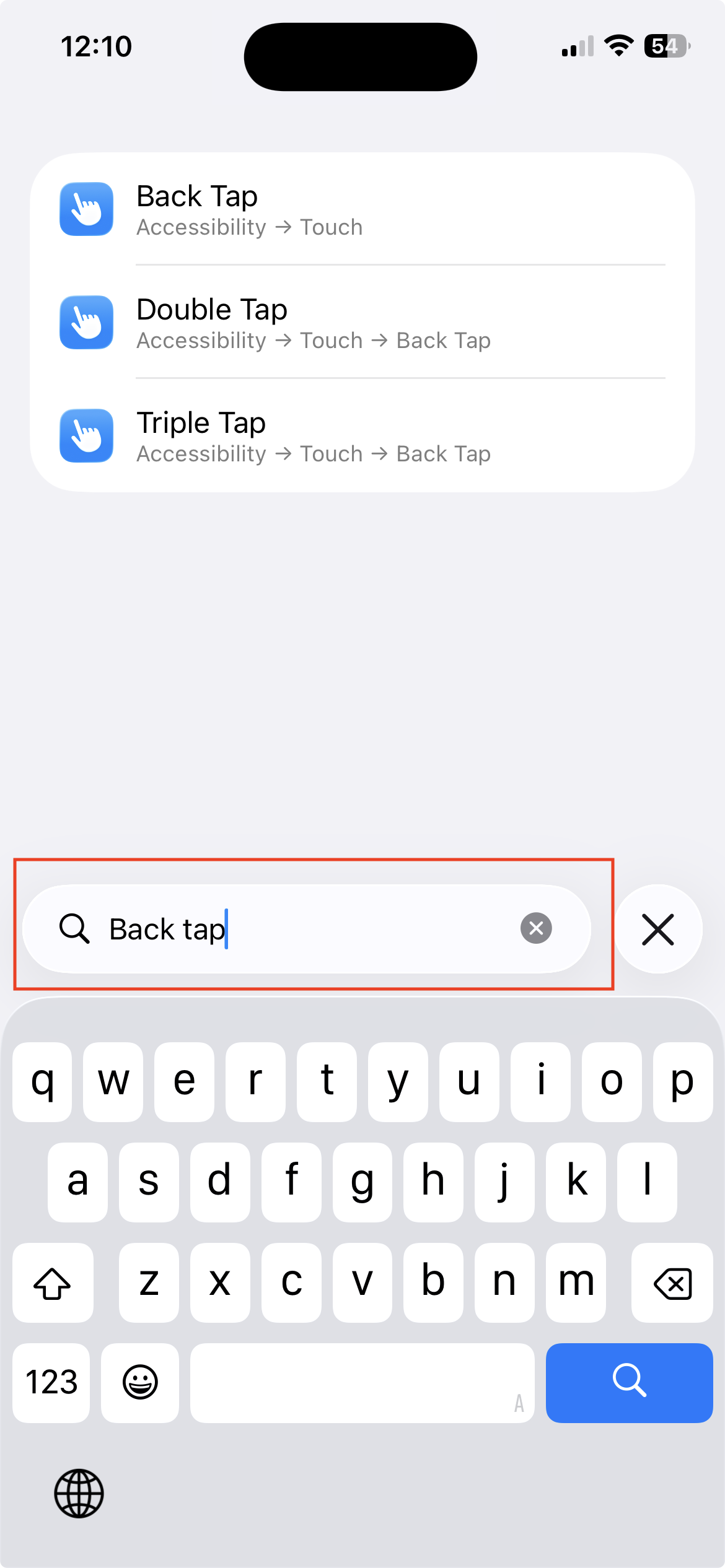
C · Type "Back tap", pick "Double Tap"
D · Scroll to Shortcuts, tap IAGTFT
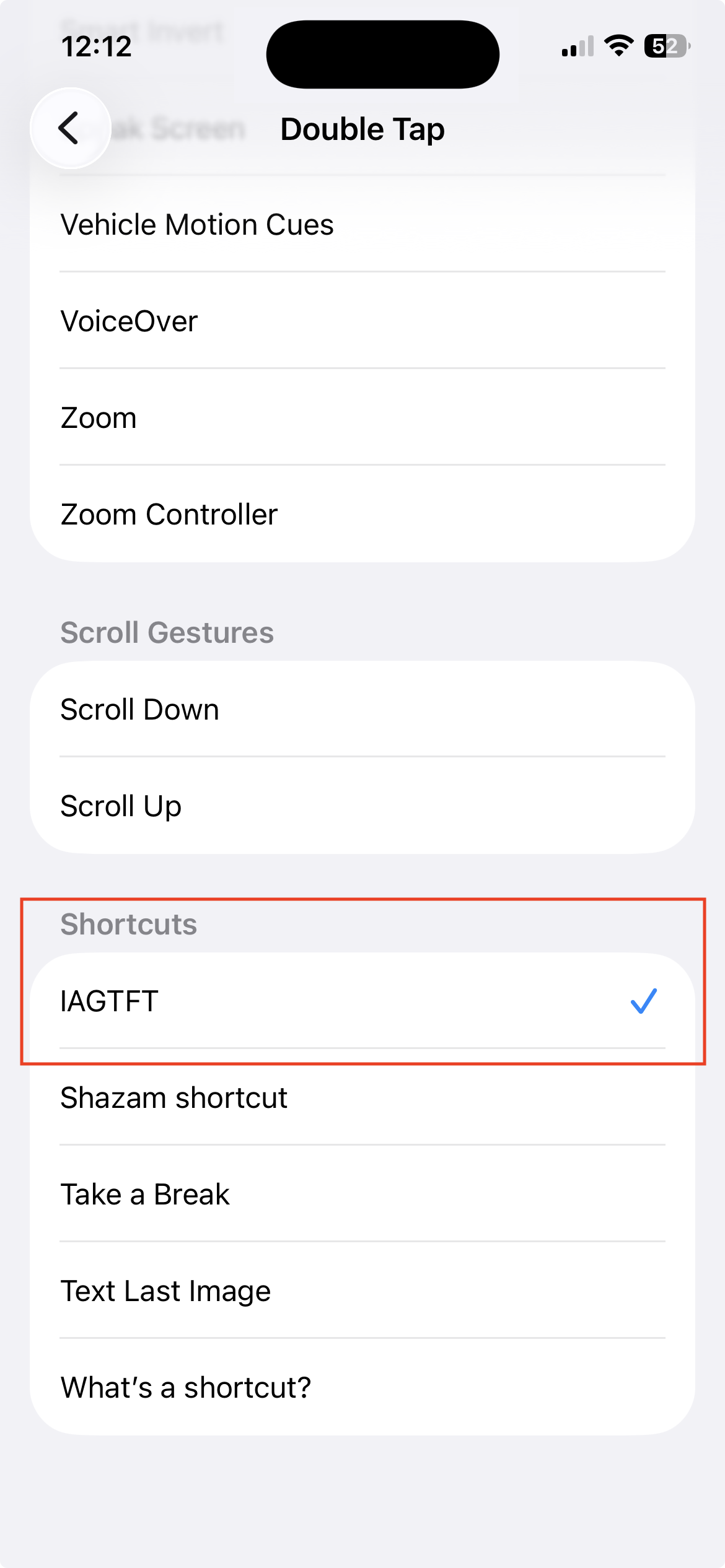
That's it. From now on, two taps on the back of your phone fires the Shortcut.
Try it
Go find something worth remembering. A recipe, a product, a weather screen, a tweet. Double-tap the back of your phone. You won't see anything happen — that's on purpose. The Shortcut is silent when it works.
Your first digest email will land at the hour you picked when you signed up.
Prefer the Action Button or Share Sheet?
- Action Button (iPhone 15 Pro and later). Settings → Action Button → Shortcut → IAGTFT. Same result, different gesture.
- Share Sheet. If a screenshot is already in Photos, share it to IAGTFT and it gets processed the same way.
Privacy
Screenshots flagged as containing sensitive info (passwords, banking, medical, government IDs) get auto-detected by the vision model and deleted before anything is stored. They never appear in your digest.
When something goes wrong
The Shortcut is silent on success. If it fails, you'll see a notification:
- Key not recognised. Delete
iagtft-key.txtfrom iCloud Drive → Shortcuts, then run the Shortcut again to re-paste. - Daily limit hit. There's a per-user daily cap so a runaway loop can't drain the budget. Try again tomorrow.
- Service paused. Usually temporary. Try again later.
Need a key?
If you're reading this before signing up — here's the form. You'll get a verification email, then your key, then you're back to step 2.
Curious what actually arrives? See a sample digest →